
Glasser Team6 min readUpdated
Dify × Glasser: Bringing Business Data into Your AI Workflows
Bring business data into your Dify workflows with Glasser. Find contacts, research companies, and retrieve search insights without leaving your workflow.
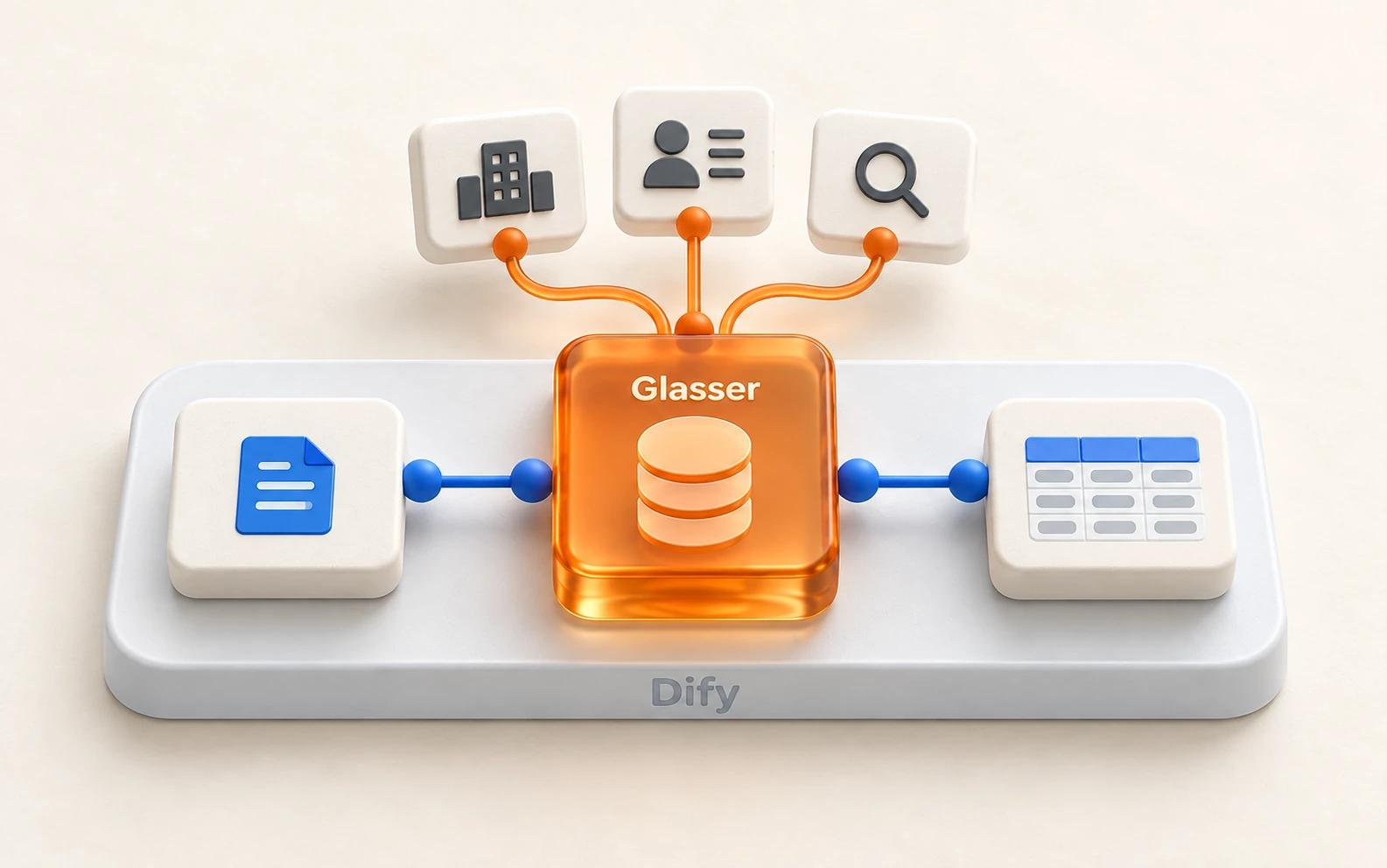
How can a Dify workflow assess a company or spot a market opportunity if its model has never seen the latest funding round, hiring changes, or search results?
An LLM can analyze the information you give it, but its training knowledge does not update as businesses change. An uploaded company report only reflects what was known when it was written. Workflows that support sales, research, or content planning need a way to retrieve business information when the task runs.
Connecting data APIs yourself adds another layer of work: separate accounts and access permissions, subscriptions or credit commitments, authentication, rate limits, and different request and response formats. Combining people data from Apollo with search metrics from another provider means maintaining those integrations before you can build the workflow itself.
The Glasser plugin for Dify brings those lookups into the canvas through one Glasser Key and a shared balance, with usage-based billing. Add a tool node, connect an input such as a company domain, and pass the returned records to an LLM node. The model can then work from retrieved evidence. Data freshness still depends on the provider and the requested operation.
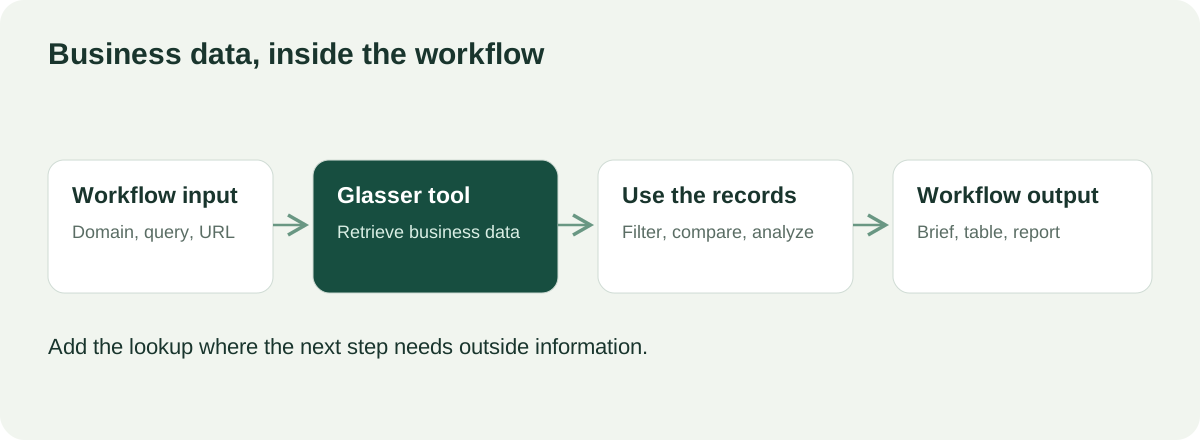
Retrieve the information a task needs at the point where the workflow needs it. Conceptual diagram.
What business data can you retrieve?
The plugin groups its capabilities into six tools:
- Find Prospects: Search for people by role, location, or employer; enrich profiles and find work emails.
- Company Intelligence: Look up company profiles, technology stacks, traffic, competitors, funding, and news.
- Keywords & SEO: Retrieve keyword metrics, search results, organic rankings, and backlink data.
- Web Research: Search the web, read pages, and request answers with sources.
- Social Media Search: Search posts and retrieve account or channel information.
- Market Data: Access US property information, rent estimates, local housing statistics, and stock quotes.
The tools share one Glasser Key and a prepaid balance. Data calls are billed by usage. You can let Glasser select a provider or specify one for the request. The Marketplace listing describes the supported operations and providers.
Choose a tool based on what the next step needs. A content brief may need keyword metrics and search results. An account review may need company details. For customer leads, the relevant starting point is Find Prospects.
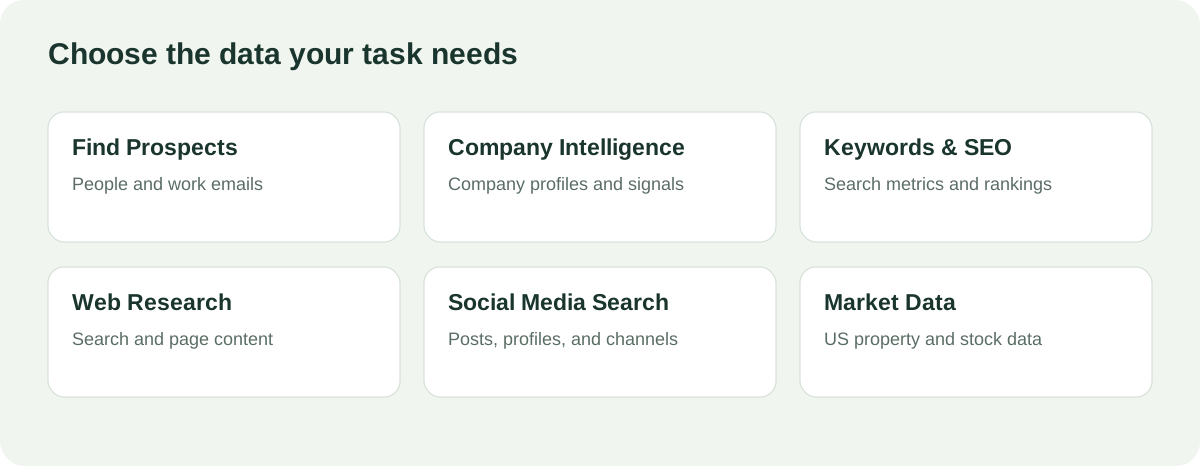
Six tools provide starting points for different business tasks. Conceptual capability map.
Connect Glasser to your workspace
- Install. Open Glasser in the Dify Marketplace and install the plugin in your workspace.
- Create a Key & authorize. In the Glasser console, open Keys and create a Key. In Dify, open the plugin’s authorization settings and paste it into Glasser Key. Save the credential once; all six tools use it. Keep the Key in authorization settings, separate from workflow inputs and LLM prompts.
- Add a node. On the Dify canvas, choose Add Node → Tools → Glasser and select a tool. Set Action and Provider, then use the variable picker to bind query fields to an earlier node. Connect an LLM node after it. Enable Jinja for its user prompt and bind an Input Variable to the tool’s json output, an array of run objects containing provider results. The text output contains a run summary.
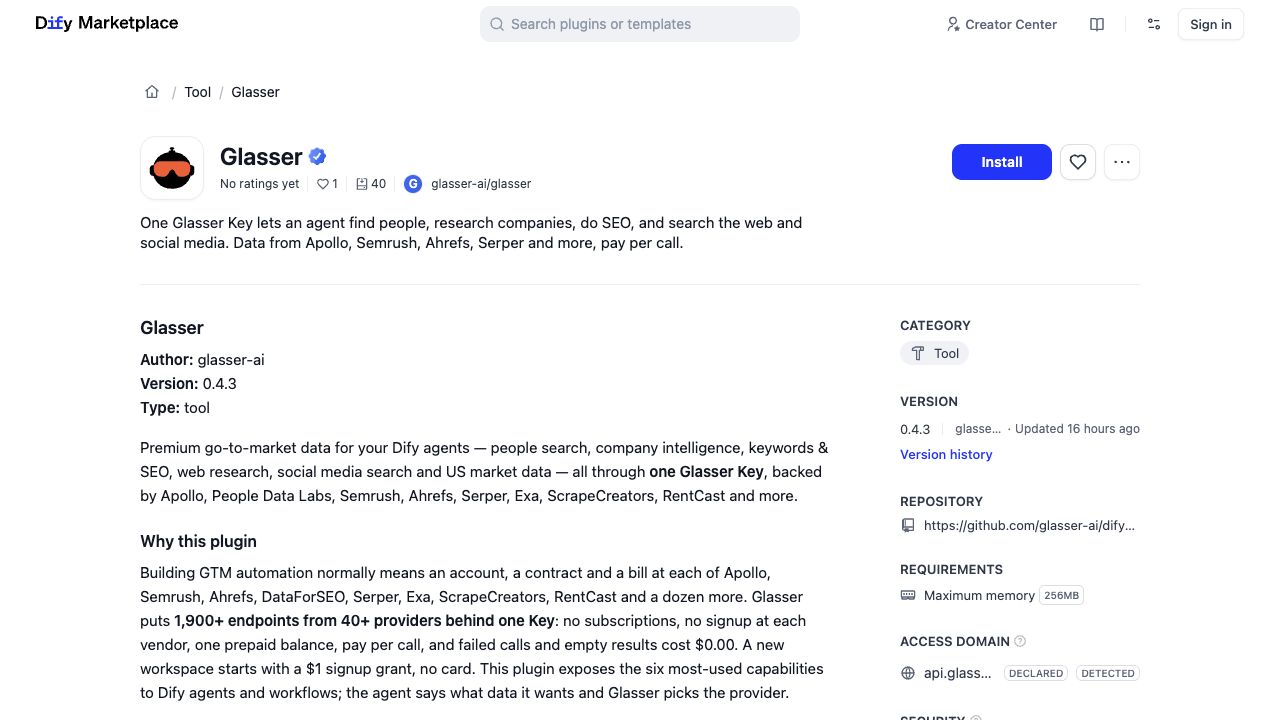
Glasser on the Dify Marketplace.
Example: find contacts at a target company
Your sales team has a company domain and needs an engineering contact. This Chatflow uses Glasser to find matching people and a work email, then asks an LLM to organize the results into a lead card.
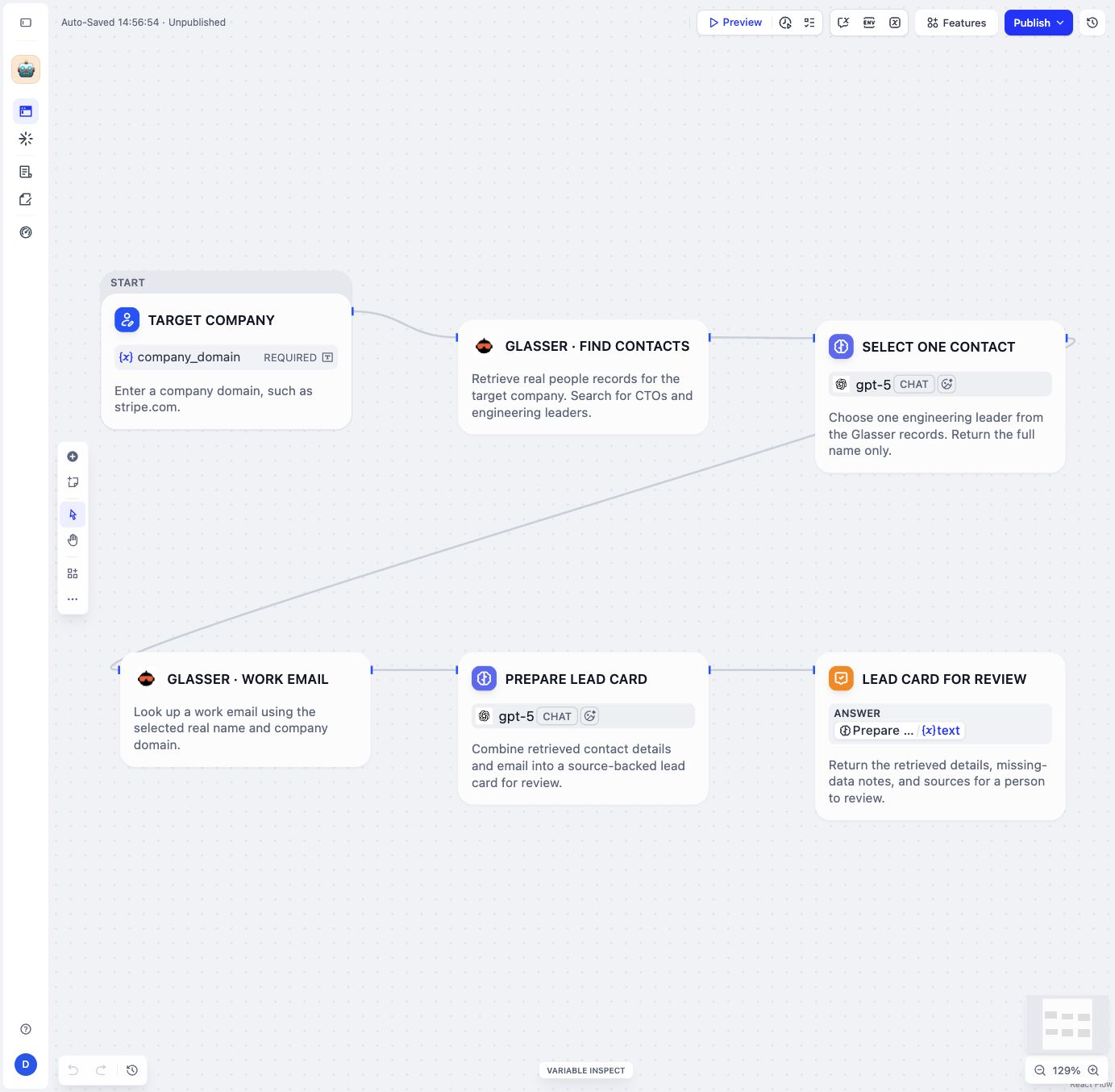
Configured in Dify’s Chatflow editor; not executed. Follow the top row, then the bottom row.
1. Find relevant contacts. In Target company, add a required text input called company_domain, such as stripe.com. Connect a Find Prospects node named Glasser · Find contacts. Choose Search, keep the provider on Auto (Glasser picks), and enter CTO, VP Engineering, Head of Engineering in Job titles. Bind Company domain to your input.
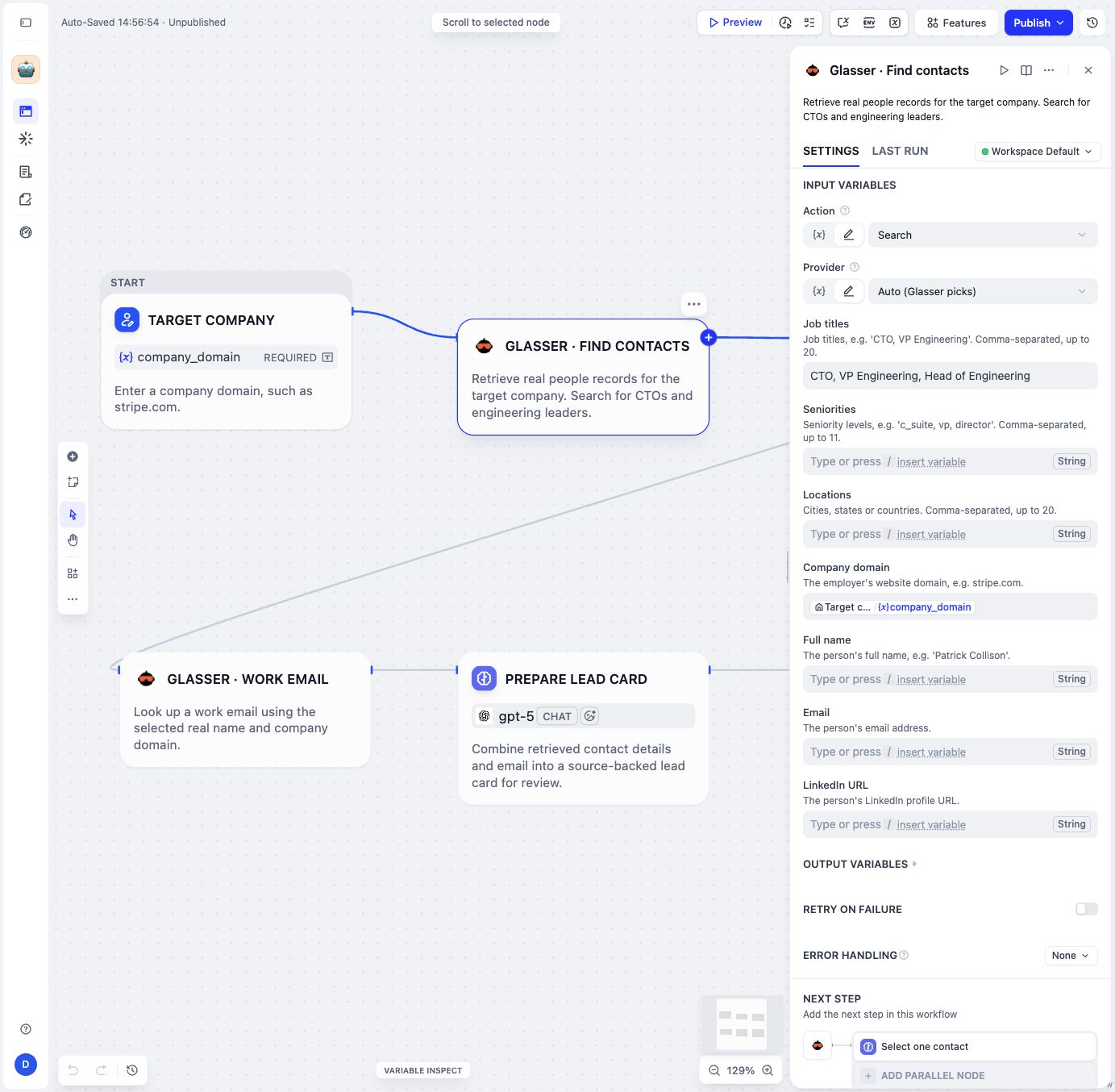
Glasser searches for people matching the company and roles.
2. Look up a work email. Add an LLM node, Select one contact. Enable Jinja, add an input variable named contacts bound to the Glasser node’s json output, and include {{ contacts | tojson }} in the prompt. Ask the model to read the records inside each run’s output, choose one engineering contact, and return only their full name—or an empty string if none is found.
Add a second Find Prospects node named Glasser · Work email. Choose Find work email and keep the provider on Auto. Bind Full name to the LLM’s text output and Company domain to the original input. Leave Email blank.
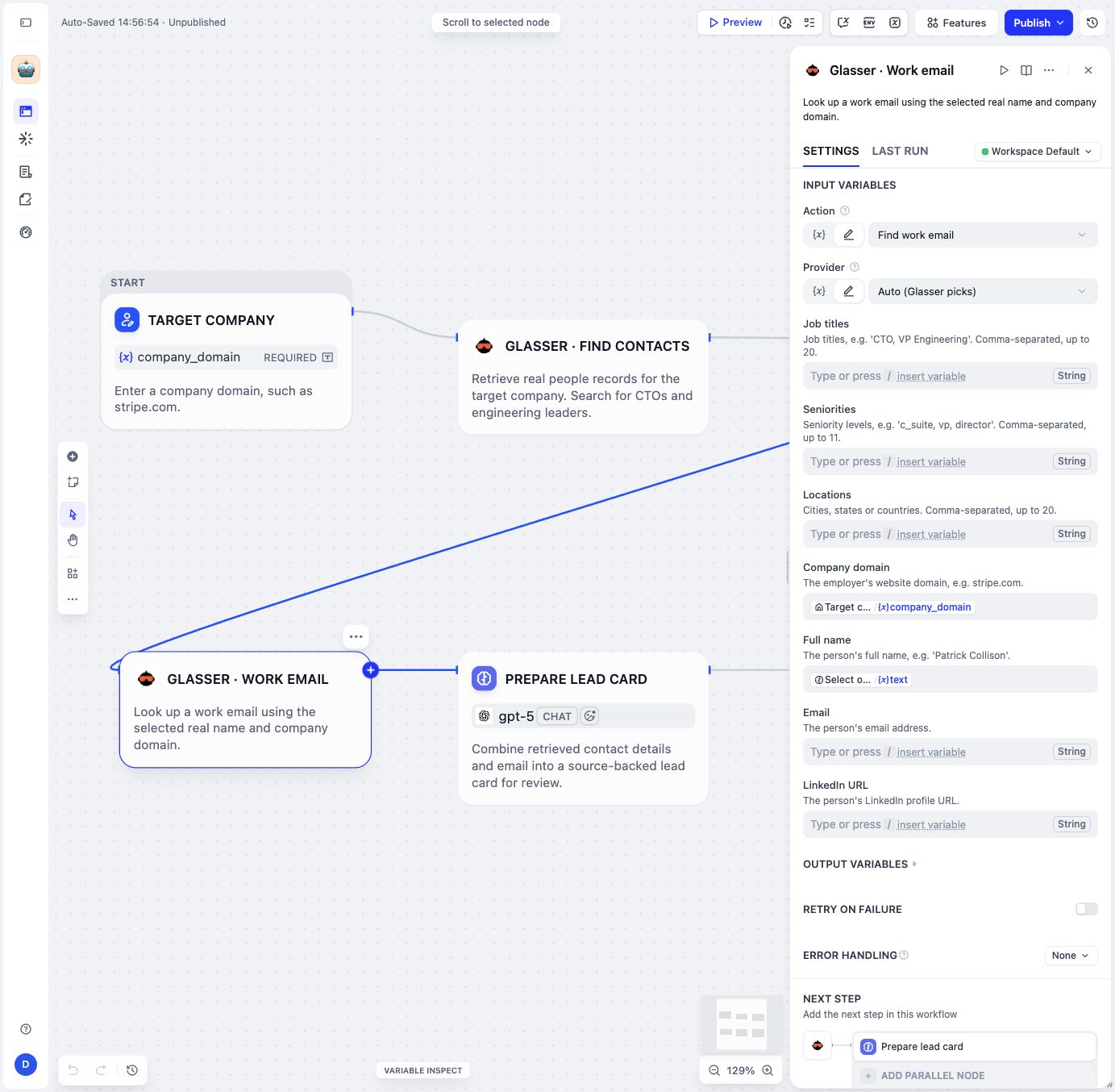
The selected name feeds into a second Glasser lookup.
3. Prepare the lead card. Give the final LLM the company domain, selected name, and both Glasser json outputs, using the same Jinja pattern. Ask for a table with company, name, role, work email, lookup status, and available source links. Use only returned values and mark missing fields Not found. In the Lead card for review Answer node, select this LLM’s text output to display the table.
Before running, add an IF/ELSE check to skip the email lookup when no name is returned, and inspect a sample response.
Glasser provides the contact and email records; the LLM selects and organizes them. The same pattern works for company reviews and research briefs that need outside business data.
Add business data to your workflow
To adapt an existing Dify workflow, place a Glasser tool between the node that supplies your query and the LLM node that needs the answer. For a company brief, add a Company Intelligence node, choose Enrich, and connect your company-domain input to its Domain field. Pass its json output into the briefing prompt using the same Jinja and tojson pattern. Browse the Glasser plugin in the Dify Marketplace for the tool your task needs. Start with one lookup, inspect its returned fields, and keep source links and missing-data notes in the final output.
About Glasser
Glasser connects AI agents to data about people, companies, search, social media, jobs, and more through one Key. It brings multiple data providers under a shared balance, with pay-as-you-go access and prices available before a call. Teams can use the data for tasks such as lead generation, research, and SEO without managing separate provider subscriptions.
Website · Docs · Blog · X · Discord
About Dify
Dify is a platform for building and operating AI applications. It combines visual workflows, agents, knowledge pipelines, models, and tools in a shared workspace. Teams can build and test an application, then deploy it in the cloud, in a private environment, or on their own infrastructure.
Related posts
View more
8 min read
Local Business Data: How to Build a List by City and Category
Build a list of local businesses for a chosen city and category. Compare data sources, follow a geographic query, and handle duplicate locations.

7 min read
How to Look Up Company Information with a Free API
Need company records from an API? Compare Companies House, SEC, and OpenCorporates, check free access, and test coverage for the companies you need.

8 min read
Company Funding Data: Where to Find It and How to Choose
Choose funding databases, event feeds, files, or domain lookups. Build a recent-funding list and keep rounds, dates, amounts, and access rights clear.
Make your agent
work with real data.
Search, inspect, and run data APIs through one Glasser key. Turn your next question into a result you can use.
Get started with Glasser